
Account Creation
Champion is designed as a self-sign-up service where business professionals can access Champion at https://app.champion.ai and create an account using their business email. The process includes passwordless email verification and domain ownership verification to ensure security.
Prerequisites
Before creating your Champion account, you'll need:
- ✅ A valid business email address
- ✅ Access to your email inbox for verification codes
- ✅ Access to your domain's DNS settings (for domain verification)
- ✅ Administrator access to your DNS provider (GoDaddy, Cloudflare, Route 53, etc.)
Sign In Process
Step 1: Access Champion
Go to https://app.champion.ai and enter your business email address.

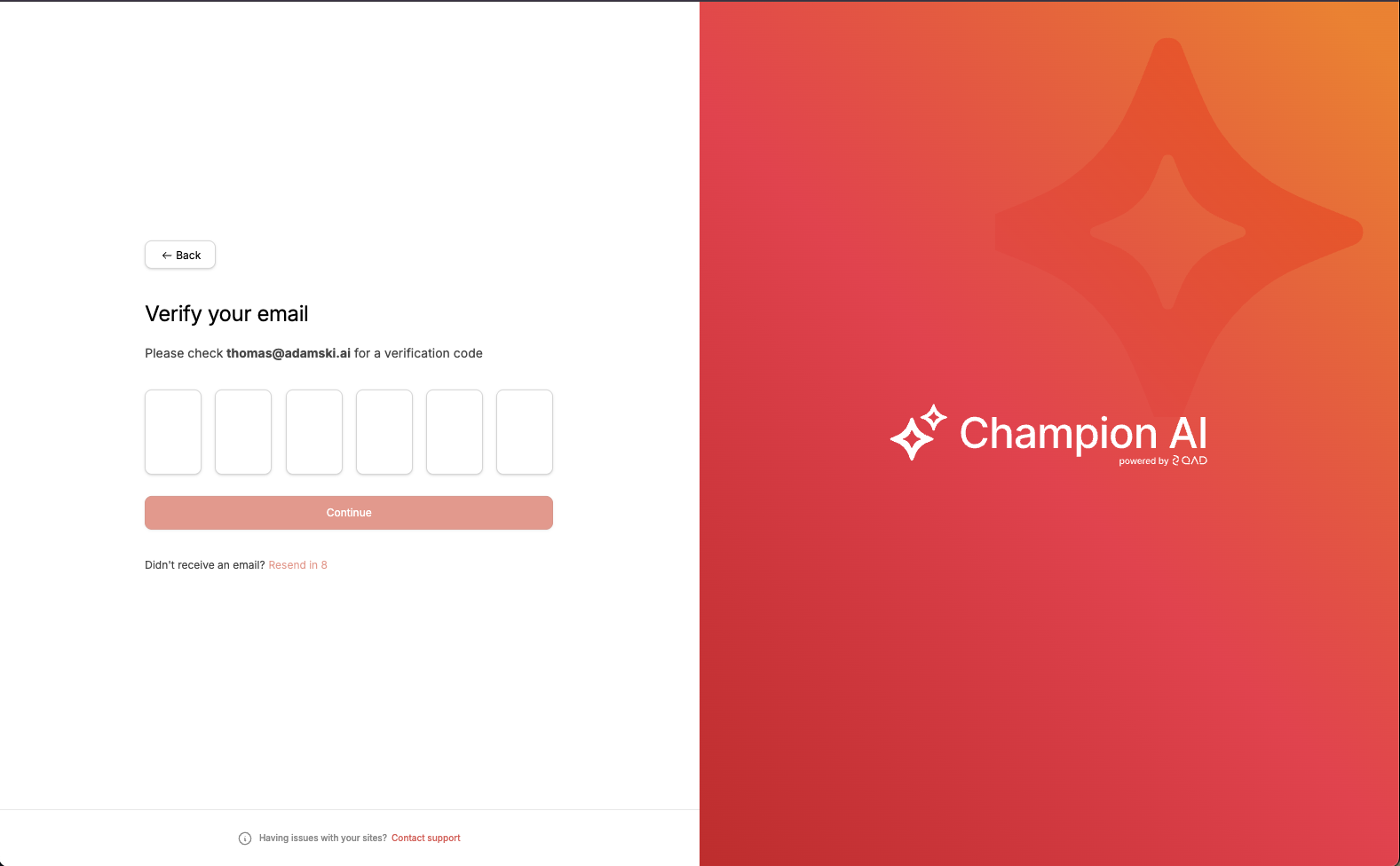
Step 2: Check Your Email
You'll be taken to a verification code entry screen. Check your email inbox for the verification code.
Step 3: Retrieve Verification Code
Open the email from Champion containing your verification code.

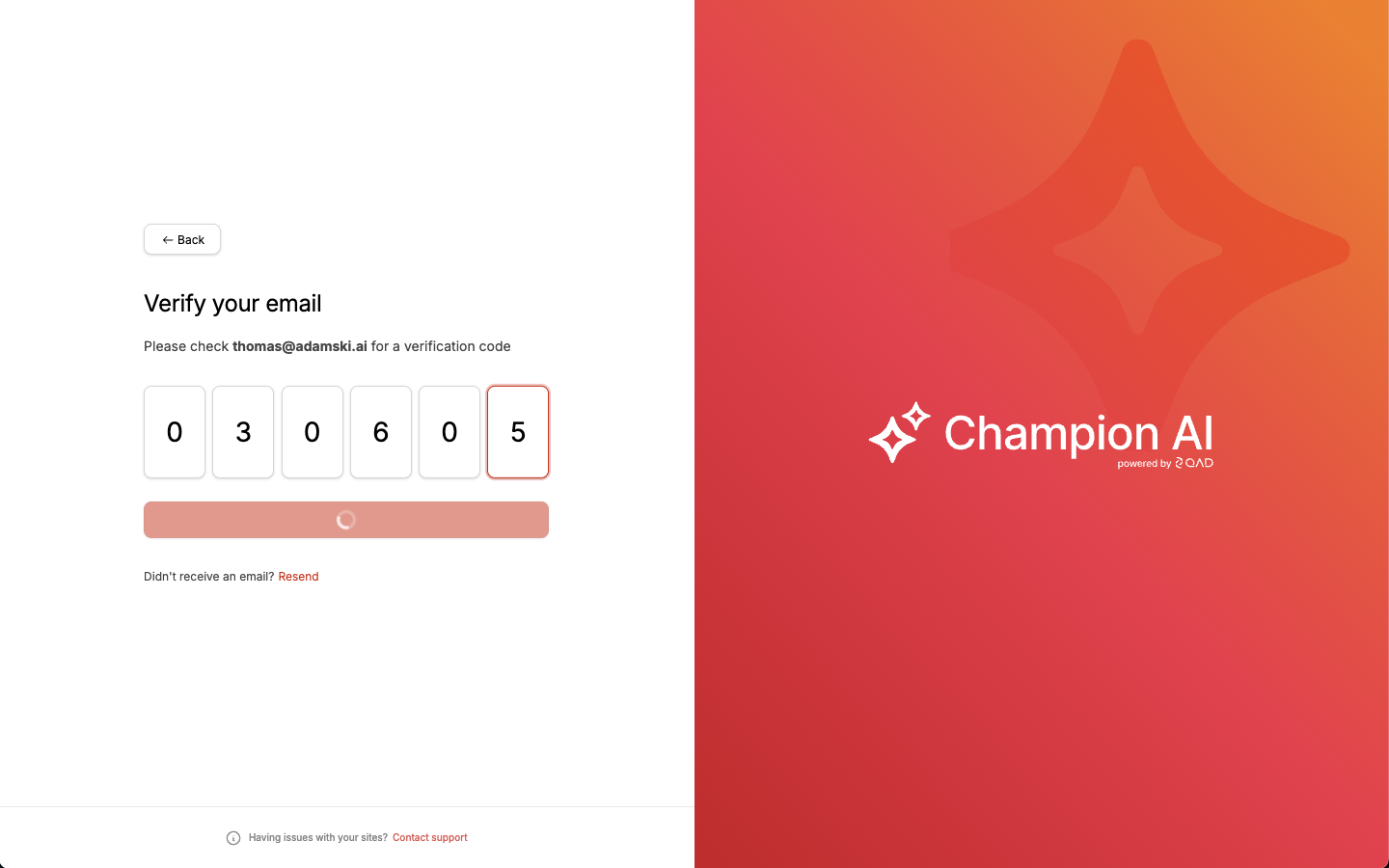
Step 4: Enter Verification Code
Enter the verification code from the email into the Champion verification screen.
Account Setup
If this is your first time signing in, you'll be prompted to complete the account setup workflow. If your account is already set up, you'll go directly to the Champion Web Experience.
Account setup includes:
- Domain ownership verification (to ensure you control your email domain)
- User admin details
- Account information
- Agreement acceptance

Domain Ownership Verification
To prevent unauthorized account creation, Champion requires you to verify that you control your email domain by adding a DNS TXT record.
Verification Instructions
You'll be presented with instructions to add a TXT record to your domain's DNS settings.

The screen provides:
- Record Type: TXT
- Host/Name: Specific value for your domain
- Value/Content: Verification code
- TTL: Time to live setting
Adding the TXT Record
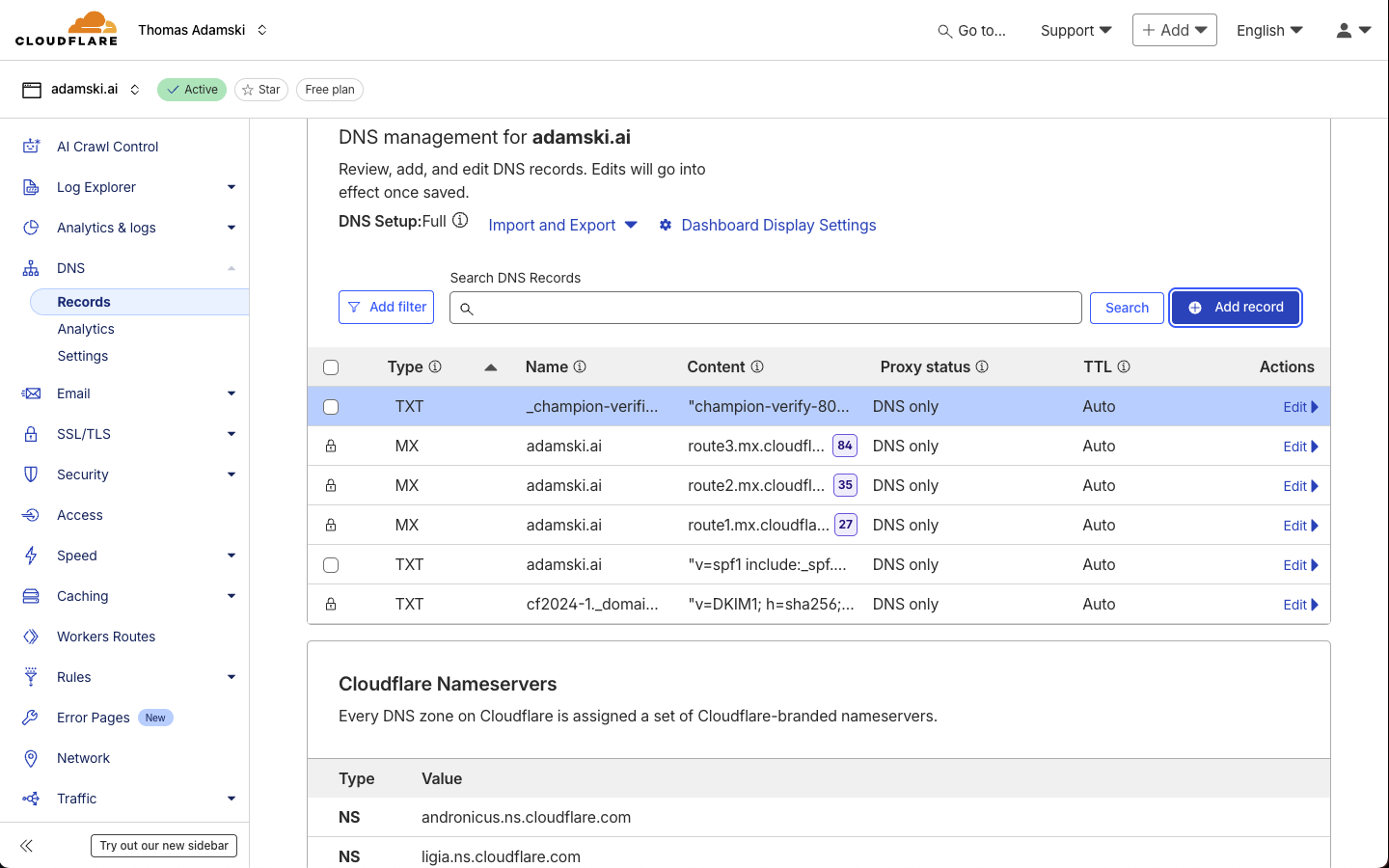
Follow the instructions for your DNS provider. Below is an example using Cloudflare.
AWS Route53 Example
Navigate to the hosted zone in your AWS account matching the domain of your business email. Create a new TXT record using the values provided by Champion.
In the following example image, the hosted zone is example.com and a TXT record is populated from the provided Champion values

Cloudflare Example
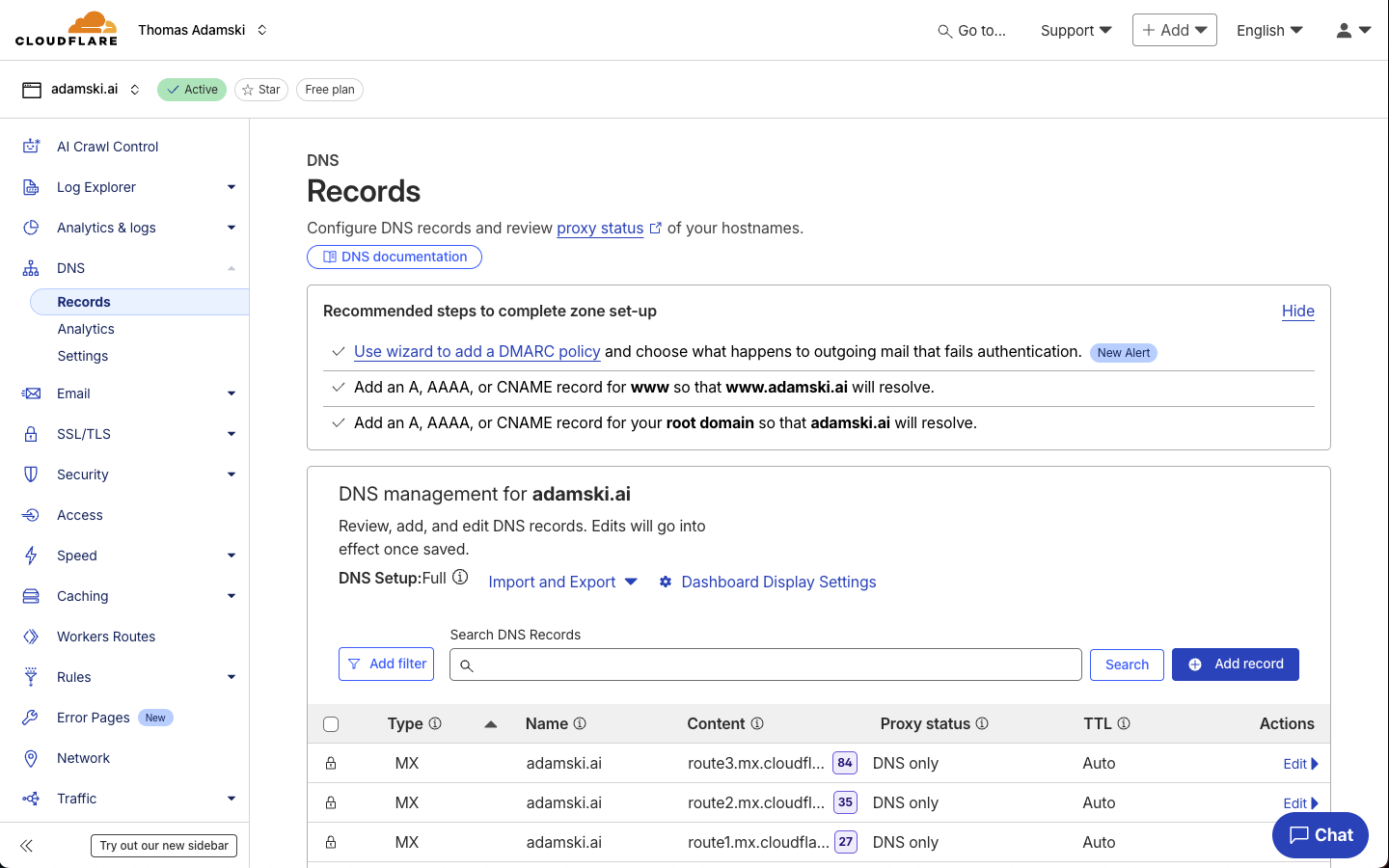
Step 1: Access DNS Records
Log in to your Cloudflare account and navigate to DNS Records for your domain.
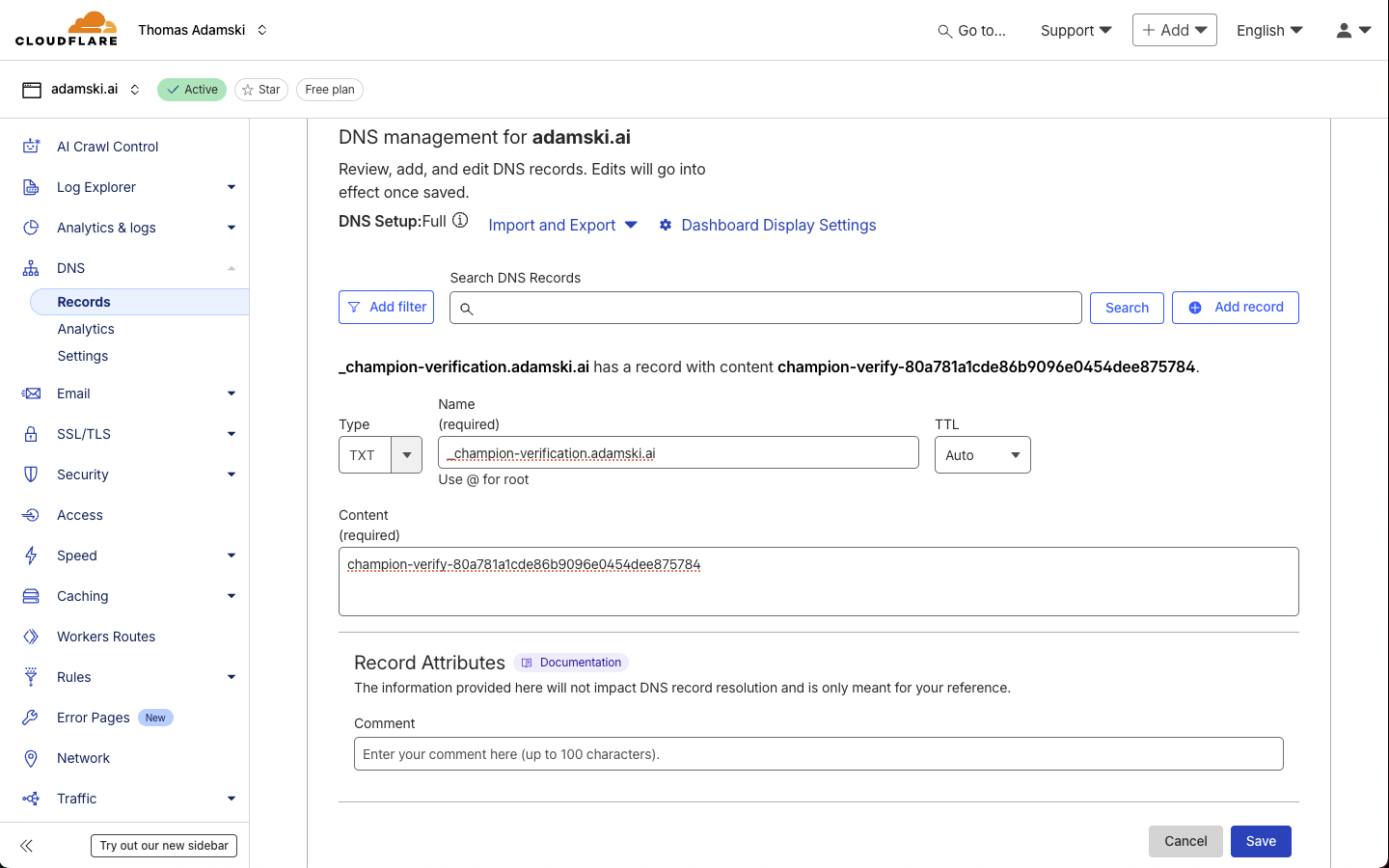
Step 2: Add Record
Click "Add Record" and enter the TXT record details provided by Champion.
Step 3: Save Record
Save the new DNS TXT record.
Other DNS Providers
Using a Different DNS Provider?
The process is similar for all DNS providers (GoDaddy, Route 53, Namecheap, etc.):
- Access your DNS management console
- Add a new TXT record
- Enter the Host/Name and Value from Champion's instructions
- Save the record
DNS changes may take 5-15 minutes to propagate.
Verify Your Domain
Once you've added the TXT record to your DNS provider, return to Champion and click the verification button.

DNS Propagation Time
DNS changes can take 5-15 minutes to propagate globally. If verification fails immediately after adding the record, wait a few minutes and try again.
User Admin Details
Once domain ownership is verified, you'll be prompted to enter your admin details. The first user to successfully verify the domain automatically becomes the account administrator.

Information Required:
- First Name
- Last Name
- Job Title (optional)
- Phone Number (optional)
Account Details
After entering your user details, you'll provide additional information about your business account. This helps Champion AI provide more tailored responses.

Information Required:
- Company Name: Your business/organization name
- Industry: Select from dropdown (Manufacturing, Healthcare, Retail, etc.)
- Company Size: Number of employees
- Primary Use Case: What you'll use Champion for
- ERP System: Your enterprise system (QAD, SAP, Oracle, etc.)
Accept Agreement
Before activating your account, you need to:
- Click the "Enable Champion AI" toggle
- Review and accept the AI Disclaimer

AI Disclaimer
The disclaimer covers Champion AI's capabilities, limitations, and appropriate use. Review it carefully before accepting.
Save and Complete Setup
Once you've filled out all account details and accepted the agreement, click "Save" to complete the account setup.

After saving, you'll be taken to the Champion Web Experience dashboard where you can:
- Invite additional users
- Configure Champions
- Upload knowledge
- Access the chatbot
What Happens Next
After completing account creation:
Immediate Access
✅ You can now:
- Access Champion Web Experience (admin portal)
- Use the Champion Chatbot (if embedded in your applications)
- Invite team members
- Begin configuring Champions
Next Steps
- Invite Users: Add team members to your account
- Configure Champions: Set up AI Champions for your workflows
- Upload Knowledge: Add company documents for Champions to reference
- Explore the Chatbot: Learn how to interact with Champions
Troubleshooting
Verification Code Not Received
Problem: Email with verification code doesn't arrive
Solutions:
- Check your spam/junk folder
- Wait 1-2 minutes (delivery may be delayed)
- Click "Resend Code" on the verification screen
- Verify you entered your email correctly
- Check your email server isn't blocking Champion emails
Domain Verification Fails
Problem: Domain verification doesn't succeed after adding TXT record
Solutions:
- Wait 5-15 minutes for DNS propagation
- Verify you entered the exact TXT record value (no extra spaces)
- Check the Host/Name field matches exactly
- Use a DNS checker tool to verify the TXT record is live:
nslookup -type=TXT _champion-verify.yourdomain.com- Or use online DNS checkers
- Contact your DNS provider if issues persist
Wrong Domain Administrator
Problem: Someone else in your organization became the admin
Solution: The first person to verify the domain becomes admin. If this wasn't you:
- Contact the person who completed verification
- They can invite you as an Account Admin
- Or they can transfer admin rights via user management
Cannot Access DNS Settings
Problem: You don't have access to modify DNS records
Solutions:
- Contact your IT department or domain administrator
- Provide them the TXT record details from Champion
- Ask them to add the record on your behalf
- Return to Champion and verify once they've added it
Email Domain Issues
Problem: Your email domain isn't eligible for self-sign-up
Common Issues:
- Free email providers (Gmail, Yahoo, Outlook.com) are not supported
- Temporary/disposable email domains are blocked
- Some generic domains may be restricted
Solution: Use your company's business email domain
Security & Privacy
Passwordless Authentication
Champion uses passwordless email verification for security:
- ✅ No passwords to remember or manage
- ✅ No password-related security vulnerabilities
- ✅ Reduced risk of phishing attacks
- ✅ Simpler, more secure authentication
Domain Verification
Requiring DNS TXT record verification ensures:
- ✅ Only domain owners can create accounts
- ✅ Prevents unauthorized account creation
- ✅ Confirms organizational legitimacy
- ✅ Protects against email spoofing
Data Protection
During account creation:
- 🔒 All data transmitted over encrypted connections
- 🔒 Email addresses stored securely
- 🔒 Verification codes expire after use
- 🔒 DNS verification tokens are unique per attempt
Related Topics
Add team members to your account
Learn about the admin portal
Set up AI Champions
Account Created!
Welcome to Champion AI. Start by inviting your team, configuring your first Champion, or uploading company knowledge.
Updated 12 days ago